Generate Qt code from a UI picture
 January 3, 2025
 11
minutes
11
minutes
After years of working on middleware, I’ve lost interest in writing UI code. However, in smaller businesses, I often find myself responsible for it anyway. So, why not use AI tools to generate the code directly from UI designs?
What we should know before prompting
Before writing a prompt, it’s important to understand the following parameters:
- Temperature: This ranges from 0 (only the highest-probability token) to 1. Higher values result in more randomness in the output.
- Top-p: A sampling setting where the value ranges from 0 (only the highest-probability token) to 1 (all tokens).
- Top-k: Another sampling setting. A top-k value of 1 means greedy decoding (only the highest-probability token), while higher values increase the randomness of the output.
Usually, a general configuration suffices. However, a larger max_output_tokens is preferred to handle generating more complex code.
In addition, there are various methods for writing prompts, such as one-shot/few-shot, Chain-of-Thought (CoT), Tree-of-Thought (ToT), and ReAct (Reason & Act). These techniques focus on providing clear instructions and examples to the model, mimicking the way humans learn new concepts.
Now, write an instruction prompt for the LLM and observe how it performs after learning.
Prompt from picture to Qt code
The following prompt could help you generate Qt code directly from a picture, and it could significantly reduce your time and energy then you can focus on more critical aspects of your projects.
Generate qt class code from the design picture. We should consider several parts below, then generate the code.
1: Generate a class inherited from QDialog with given name. The class contains construction function and deconstruction function, and the private variables have the same prefix m_
2: Generate the declarition and definition separately
3: Configure for this qt class, e.g. setWindowTitle setModal or setWindowFlags etc.; be careful with the background color and the stylesheet of the dialog and each qt component on it
4: Recognize each qt component in the picture, and every input qt component should be predefined as private member variables. Replace the Characters which are not English with tr(English characters).
5: Generate every qt component and put them into appropriate layouts. Every qt component should keep the same relative percentage as in the picture. If there is necessary space before a qt component, use QSpacerItem instead to fill up the space. All of those actions are put in a private member function setupUI(), called in the construction function
6: If there is a table embedded in other qt components, use another widget to add the embedded qt component, then use setIndexWidget to embed the new widget to specific position in the table.Table component should support add, edit and delete operations
7: Identify the type of comboboxes as QComboBox, QFontComboBox or QColorComboBox
8: Add two public member functions, set and get all the values from the input qt components in json object.
9: If there is an "OK" button, bind a slot for it that emit a signal with json object containing all the values from the input qt components.
10: Bind every button with a slot
You don't have to analyze the coding process
For this task, gemini model is preferred, specifically gemini-2.0-flash-thinking-exp-1219. It’s a free model capable of handling long and complex prompts effectively. Some other models might struggle to deal with this prompt.
Provide the model with the picture
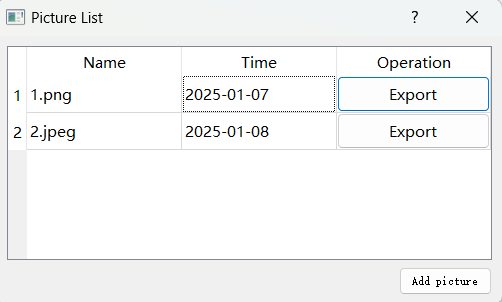
and configure it with temperature=1,top-p=0.95,max_output_tokens=8192. The model generated PictureListDialog.h and PictureListDialog.cpp.
// PictureListDialog.h
#ifndef PICTURELISTDIALOG_H
#define PICTURELISTDIALOG_H

#include <QDialog>
#include <QJsonObject>
#include <QJsonArray>
#include <QTableWidget>
#include <QPushButton>
#include <QVBoxLayout>
#include <QHBoxLayout>
#include <QSpacerItem>

class PictureListDialog : public QDialog
{
    Q_OBJECT

public:
    explicit PictureListDialog(QWidget *parent = nullptr);
    ~PictureListDialog() override;

    void setValues(const QJsonObject &values);
    QJsonObject getValues() const;

signals:
    void acceptedWithValues(const QJsonObject &values);

private slots:
    void onAddPictureButtonClicked();
    void onExportButtonClicked();

private:
    void setupUI();

    QTableWidget *m_pictureTableWidget = nullptr;
    QPushButton *m_addPictureButton = nullptr;
};

#endif // PICTURELISTDIALOG_H
// PictureListDialog.cpp
#include "PictureListDialog.h"
#include <QHeaderView>
#include <QDateEdit>
#include <QMessageBox>

PictureListDialog::PictureListDialog(QWidget *parent)
    : QDialog(parent)
{
    setWindowTitle(tr("Picture List"));
    setupUI();
}

PictureListDialog::~PictureListDialog()
{
}

void PictureListDialog::setupUI()
{
    QVBoxLayout *mainLayout = new QVBoxLayout(this);
    mainLayout->setContentsMargins(10, 10, 10, 10);

    // Table Widget
    m_pictureTableWidget = new QTableWidget(0, 3, this);
    m_pictureTableWidget->setHorizontalHeaderLabels({tr("Name"), tr("Time"), tr("Operation")});
    m_pictureTableWidget->horizontalHeader()->setSectionResizeMode(QHeaderView::Stretch);
    mainLayout->addWidget(m_pictureTableWidget);

    // Add initial data (based on the image)
    int row = m_pictureTableWidget->rowCount();
    m_pictureTableWidget->insertRow(row);
    m_pictureTableWidget->setItem(row, 0, new QTableWidgetItem("1.png"));
    QDateEdit *dateEdit1 = new QDateEdit(QDate(2025, 1, 7));
    dateEdit1->setDisplayFormat("yyyy-MM-dd");
    m_pictureTableWidget->setIndexWidget(m_pictureTableWidget->model()->index(row, 1), dateEdit1);
    QPushButton *exportButton1 = new QPushButton(tr("Export"));
    m_pictureTableWidget->setIndexWidget(m_pictureTableWidget->model()->index(row, 2), exportButton1);
    connect(exportButton1, &QPushButton::clicked, this, &PictureListDialog::onExportButtonClicked);
    exportButton1->setProperty("row", row); // Store row information

    row = m_pictureTableWidget->rowCount();
    m_pictureTableWidget->insertRow(row);
    m_pictureTableWidget->setItem(row, 0, new QTableWidgetItem("2.jpeg"));
    QDateEdit *dateEdit2 = new QDateEdit(QDate(2025, 1, 8));
    dateEdit2->setDisplayFormat("yyyy-MM-dd");
    m_pictureTableWidget->setIndexWidget(m_pictureTableWidget->model()->index(row, 1), dateEdit2);
    QPushButton *exportButton2 = new QPushButton(tr("Export"));
    m_pictureTableWidget->setIndexWidget(m_pictureTableWidget->model()->index(row, 2), exportButton2);
    connect(exportButton2, &QPushButton::clicked, this, &PictureListDialog::onExportButtonClicked);
    exportButton2->setProperty("row", row); // Store row information

    // Bottom layout for "Add picture" button
    QHBoxLayout *bottomLayout = new QHBoxLayout();
    QSpacerItem *leftSpacer = new QSpacerItem(40, 20, QSizePolicy::Expanding, QSizePolicy::Minimum);
    bottomLayout->addItem(leftSpacer);
    m_addPictureButton = new QPushButton(tr("Add picture"), this);
    bottomLayout->addWidget(m_addPictureButton);
    connect(m_addPictureButton, &QPushButton::clicked, this, &PictureListDialog::onAddPictureButtonClicked);

    mainLayout->addLayout(bottomLayout);

    setLayout(mainLayout);
}

void PictureListDialog::setValues(const QJsonObject &values)
{
    if (m_pictureTableWidget) {
        m_pictureTableWidget->clearContents();
        m_pictureTableWidget->setRowCount(0);

        QJsonArray pictureList = values.value("pictures").toArray();
        for (const auto& picRef : pictureList) {
            QJsonObject pic = picRef.toObject();
            int row = m_pictureTableWidget->rowCount();
            m_pictureTableWidget->insertRow(row);
            m_pictureTableWidget->setItem(row, 0, new QTableWidgetItem(pic.value("name").toString()));

            QDateEdit *dateEdit = new QDateEdit(QDate::fromString(pic.value("time").toString(), "yyyy-MM-dd"));
            dateEdit->setDisplayFormat("yyyy-MM-dd");
            m_pictureTableWidget->setIndexWidget(m_pictureTableWidget->model()->index(row, 1), dateEdit);

            QPushButton *exportButton = new QPushButton(tr("Export"));
            m_pictureTableWidget->setIndexWidget(m_pictureTableWidget->model()->index(row, 2), exportButton);
            connect(exportButton, &QPushButton::clicked, this, &PictureListDialog::onExportButtonClicked);
            exportButton->setProperty("row", row);
        }
    }
}

QJsonObject PictureListDialog::getValues() const
{
    QJsonObject values;
    QJsonArray pictureArray;

    if (m_pictureTableWidget) {
        for (int row = 0; row < m_pictureTableWidget->rowCount(); ++row) {
            QJsonObject picture;
            picture["name"] = m_pictureTableWidget->item(row, 0)->text();
            QDateEdit *dateEdit = qobject_cast<QDateEdit*>(m_pictureTableWidget->indexWidget(m_pictureTableWidget->model()->index(row, 1)));
            if (dateEdit) {
                picture["time"] = dateEdit->date().toString("yyyy-MM-dd");
            }
            pictureArray.append(picture);
        }
    }
    values["pictures"] = pictureArray;
    return values;
}

void PictureListDialog::onAddPictureButtonClicked()
{
    int row = m_pictureTableWidget->rowCount();
    m_pictureTableWidget->insertRow(row);
    m_pictureTableWidget->setItem(row, 0, new QTableWidgetItem(tr("New Picture")));
    QDateEdit *dateEdit = new QDateEdit(QDate::currentDate());
    dateEdit->setDisplayFormat("yyyy-MM-dd");
    m_pictureTableWidget->setIndexWidget(m_pictureTableWidget->model()->index(row, 1), dateEdit);
    QPushButton *exportButton = new QPushButton(tr("Export"));
    m_pictureTableWidget->setIndexWidget(m_pictureTableWidget->model()->index(row, 2), exportButton);
    connect(exportButton, &QPushButton::clicked, this, &PictureListDialog::onExportButtonClicked);
    exportButton->setProperty("row", row);
}

void PictureListDialog::onExportButtonClicked()
{
    QPushButton *button = qobject_cast<QPushButton*>(sender());
    if (button) {
        int row = button->property("row").toInt();
        QString pictureName = m_pictureTableWidget->item(row, 0)->text();
        QMessageBox::information(this, tr("Export"), tr("Exporting ") + pictureName);
        // Implement your export logic here
    }
}
Running the code on the Qt platform produced the expected results.
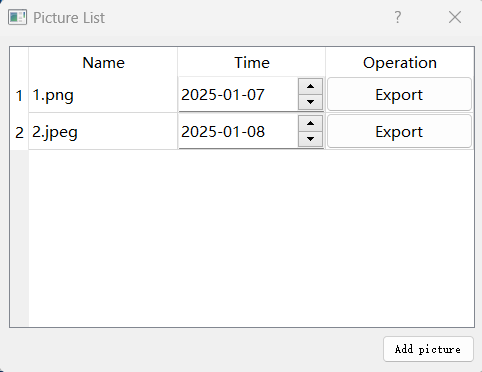
The entire code generation process took just 20.3 seconds—remarkably fast! The output met most of my requirements, needing only minor modifications to fit perfectly.
| AI |